So, the task was to create a type of “Love-o-meter”…inspired by the sort of device you’d find at a boardwalk or shopping mall…
Taking off from the lyrics of the Good Clean Fun song “Loserdotcom” (it’s really a funny song) “…you tell me that your sex life…it has not been bland…since you’ve learned how to click and type with just one hand…” I fashioned the device as a game enclosed in a computer mouse.
The experience is that you click the buttons quickly for the duration of the game while resting your palm on the top of the mouse. A row of colored LEDs will indicate the progress of the game then display a score at the end. The score algorithm is based on the number of clicks and the change in the Galvanic Skin Response monitored at the beginning and ending of the game. It’s not really sorted yet, but the fluxuations really remind me of the seemingly arbitrary results from commercial Love-O-Meter games.
Anyway, I haven’t gotten the LED meter enclosure finished, and I’d really like to alter the GSR sensors to make them better integrate with the mouse body.
I am happy with the mouse…i was able to use Cat-6 cable to connect the mouse and the microcontroller…which was fun. I figured out how to share a common ground among all of the components in the mouse (GSR, two LEDs and two switches)…this helped to drastically reduce the number of wires needed between the mouse and the controller…and enabled the use of the 8 wire cable.
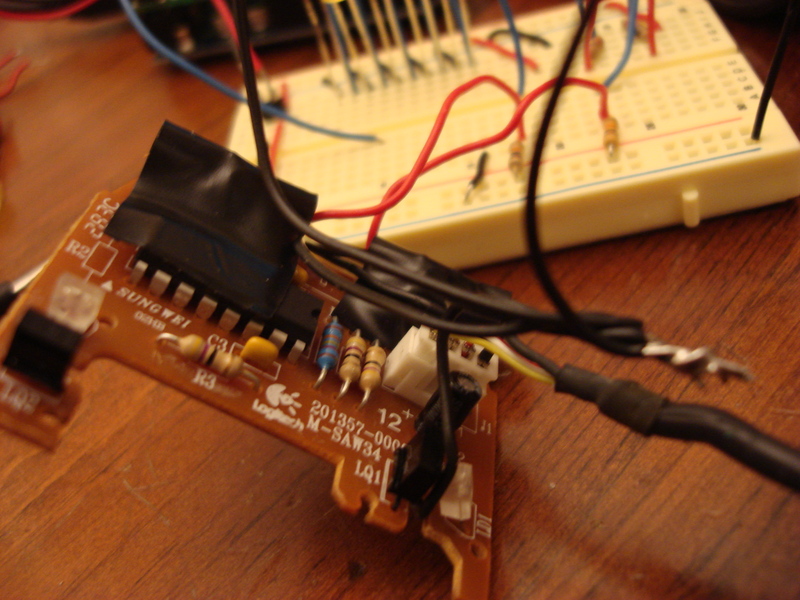
The original circuit board of the mouse, hacked up with new switches…the original ones were behaving oddly. I used the circuit board because it positions the switches precisely under the mouse buttons. Unfortunately, the existing circuit of the board interfered with my switches….really annoying until I thought to cut the existing traces on the board to isolate my circuit from the rest of the unused components…ahhh…sloppy junk parts harvesting.

The Cat-6 cable connected to the breadboard via a set of header pins.
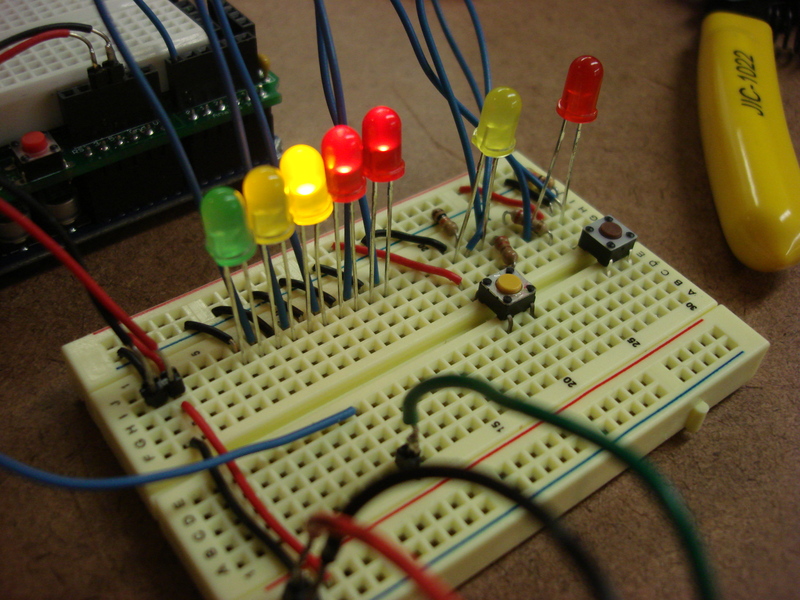
Detail of the LED meter at work.
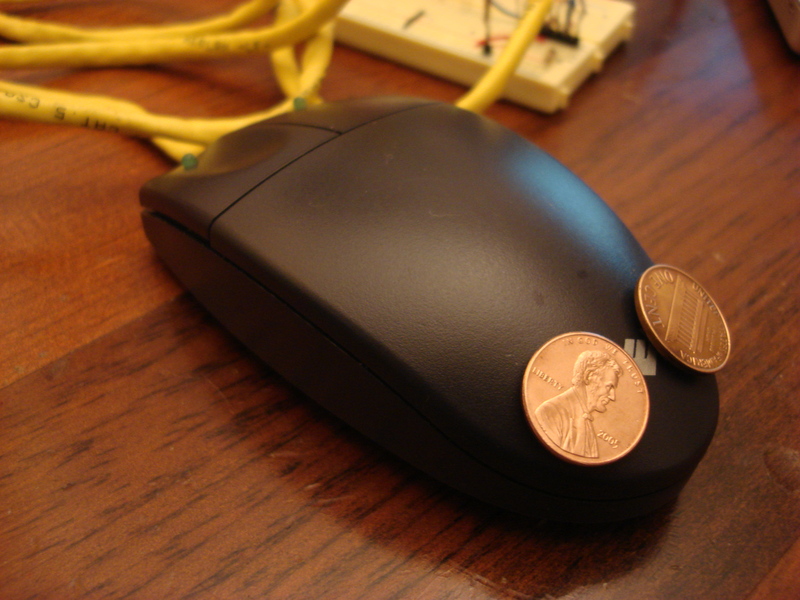
The mouse enclosure. There is a green LED on each button which illuminates when it’s button is pressed during the game. The pennies are the GSR contacts.
—
Arduino code:
// Luv-o-meter
// simple at first, just checking for the buttons and switching on the LED as necessary

int switch1 = 2;
int switch2 = 3;

int led1Pin = 5;
int led2Pin = 6;

int ledMeter[] = {
  8,9,10,11,12};

int gsrPin = 0; // analog pin
// the GSR sensor that I'm using reports fluxuations +10 when the MacBook is connected to AC power

// for comparing the start and end values of the GSR
int readGSR = 0;
int gsrBegin = 0;
int gsrEnd = 0;
int clickCount = 0; // counter for the button presses

int gameState = 0; // store the current state of the sketch

int gameScore = 0; // to tally the final score

int buttonPressed = 0;

// various timing vars
long timer = 0;
long gameDur = 10 * 1000; // the length of the game
long thinkDur = 3 * 1000; // the time for the game to "think" about the results
long resultsDur = 5 * 1000; // the duration of the results display before the sketch results
long timeout = 5 * 1000; // the timeout to return to the initial state
long gsrSmoothDur = 3 * 1000; // average the GSR readings at the beginning and end

void setup() {
  pinMode(switch1,INPUT);
  pinMode(switch2,INPUT);
  pinMode(led1Pin,OUTPUT);
  pinMode(led2Pin,OUTPUT);

  for(int i=0;i<5;i++){
    pinMode(ledMeter[i],OUTPUT);
  }

  Serial.begin(9600);
}

void loop() {
  int read1 = digitalRead(switch1);
  int read2 = digitalRead(switch2);

  // readGSR = analogRead(gsrPin);
  // Serial.println(readGSR);

  /*
  Serial.print("button 1: ");
   Serial.println(read1);
   Serial.print("button 2: ");
   Serial.println(read2);
   */
  switch(gameState){
  case 0: // waiting to start the game

    // begin if either button is pressed:
    if(read1 == LOW || read2 == LOW) {
      gameState = 1; // set the approriate game state
      clickCount = 0; // rest the counter variable

      // turn on the button LEDs to acknowledge the press:
      digitalWrite(led1Pin,HIGH);
      digitalWrite(led2Pin,HIGH);

      countDown(); // display the starting sequence

      // turn off the button LEDs to begin:
      digitalWrite(led1Pin,LOW);
      digitalWrite(led2Pin,LOW);

      timer = millis(); // reset the timer

      // read the start value of the GSR.
      // need to do this better to smooth the results:
      gsrBegin = analogRead(gsrPin);
    }
    break;

  case 1: // playing the game
    if(millis() - timer > gameDur){ // the game is over.
      digitalWrite(led1Pin,LOW);
      digitalWrite(led2Pin,LOW);

      // need to do this better. need to smooth the GSR values
      // now being done at the end of the game state, using a timer.
      //gsrEnd = analogRead(gsrPin);

      gameState = 2; // change the game state to calculate the results
      timer = millis();
    }
    else {
      // do the game stuff:
      // instant feedback - illuminate the button LEDs:
      if(read1 == LOW || read2 == LOW) {
        // ensure that one press / release is counted:
        if(!buttonPressed){
          digitalWrite(led1Pin,1-read1);
          digitalWrite(led2Pin,1-read2);

          clickCount++;
          buttonPressed = 1;
        }
      }
      else {
        digitalWrite(led1Pin,LOW);
        digitalWrite(led2Pin,LOW);
        buttonPressed = 0;
      }

      // use the meter as a game progress:
      int progress = (int) map(millis()-timer,0,gameDur,0,5);
      levelMeterNoDelay(progress);

      readGSR = analogRead(gsrPin);

      //smooth the beginning of the GSR:
      if(millis()-timer < gsrSmoothDur) {
        gsrBegin = (gsrBegin+readGSR)/2;
      }

      //smooth the end GSR readings:
      if(millis()-timer+gsrSmoothDur > gameDur){
        gsrEnd = (gsrEnd+readGSR)/2;
      }

      // send data only when asked for data:
      if (Serial.available() > 0) {
        // read the incoming byte:
        int incomingByte = Serial.read();

        // wait for the 'A' char
        if(incomingByte == 65){
          // return the GSR:
          Serial.println(readGSR);
        }
      }
    }
    break;

  case 2: // display the results of the game
    gameScore = calculateScore();
    displayThink(); // for testing the circuit
    levelMeter(gameScore);
    gameState = 3;
    timer = millis();
    break;

  case 3: // the game has ended, hold on the score display
    if(millis() - timer > resultsDur) {
      gameState = 0;
      meterOff();
      timer = millis();
    }
    break;

  }

}

void blinkOn(int led) {
  digitalWrite(led,HIGH);
  delay(100);
  digitalWrite(led,LOW);
  delay(50);
  digitalWrite(led,HIGH);
  delay(100);
}

void blinkOff(int led) {
  digitalWrite(led,LOW);
  delay(50);
  digitalWrite(led,HIGH);
  delay(100);
  digitalWrite(led,LOW);
  delay(50);
}

void displayThink() {
  // run some kind of blinking rhythm
  // cycle through the array of LEDs
  // assuming that the array is 5 units long
  for(int j=0;j<2;j++){
    for (int i =0;i<5;i++){
      blinkOn(ledMeter[i]);
      delay(10);
    }

    for (int i =0;i<5;i++){
      blinkOff(ledMeter[i]);
      delay(10);
    }
    delay(5);
  }

}

void levelMeter(int units){
  units = constrain(units,0,5);

  for (int i =0;i<units;i++){
    blinkOn(ledMeter[i]);
    delay(50);
  }
}

void levelMeterNoDelay(int units){
  units = constrain(units,0,5);

  meterOff();
  for (int i =0;i<units;i++){
    digitalWrite(ledMeter[i],HIGH);
  }
}

void meterOff() {
  // turn them all off, immediately
  for (int i =0;i<5;i++){
    digitalWrite(ledMeter[i],LOW);
  }
}

void meterOn() {
  // turn them all on, immediately
  for (int i =0;i<5;i++){
    digitalWrite(ledMeter[i],HIGH);
  }
}

void meterBlink() {
  meterOff();
  delay(50);
  meterOn();
  delay(50);
}

int calculateScore() {
  // calculate the score based on the number of presses and the GSR difference:
  int theScore = 0;

  // simple for the initial test, just work out a range based on the number of clicks
  // give a score of at least 1
  // theScore = (int) map(clickCount,0,100,1,5);

  // using GSR:
  int gsrDiff = gsrEnd - gsrBegin; // assuming that the GSR will increase over the test
  theScore = (int) map(gsrDiff,0,clickCount,1,5);
  if(theScore < 1) theScore = 1;

  Serial.print("GSR begin: ");
  Serial.println(gsrBegin);
  Serial.print("GSR end: ");
  Serial.println(gsrEnd);
  Serial.print("GSR diff: ");
  Serial.println(gsrDiff);
  Serial.print("Click count: ");
  Serial.println(clickCount);
  Serial.print("Score: ");
  Serial.println(theScore);
  Serial.println("---");

  return theScore;
}

void countDown() {
  meterBlink();
  delay(100);
  meterBlink();
  delay(100);
  meterBlink();
  delay(100);

  // countdown to the start
  for (int i=4;i>=0;i--){
    blinkOff(ledMeter[i]);
    delay(50);
  }
}
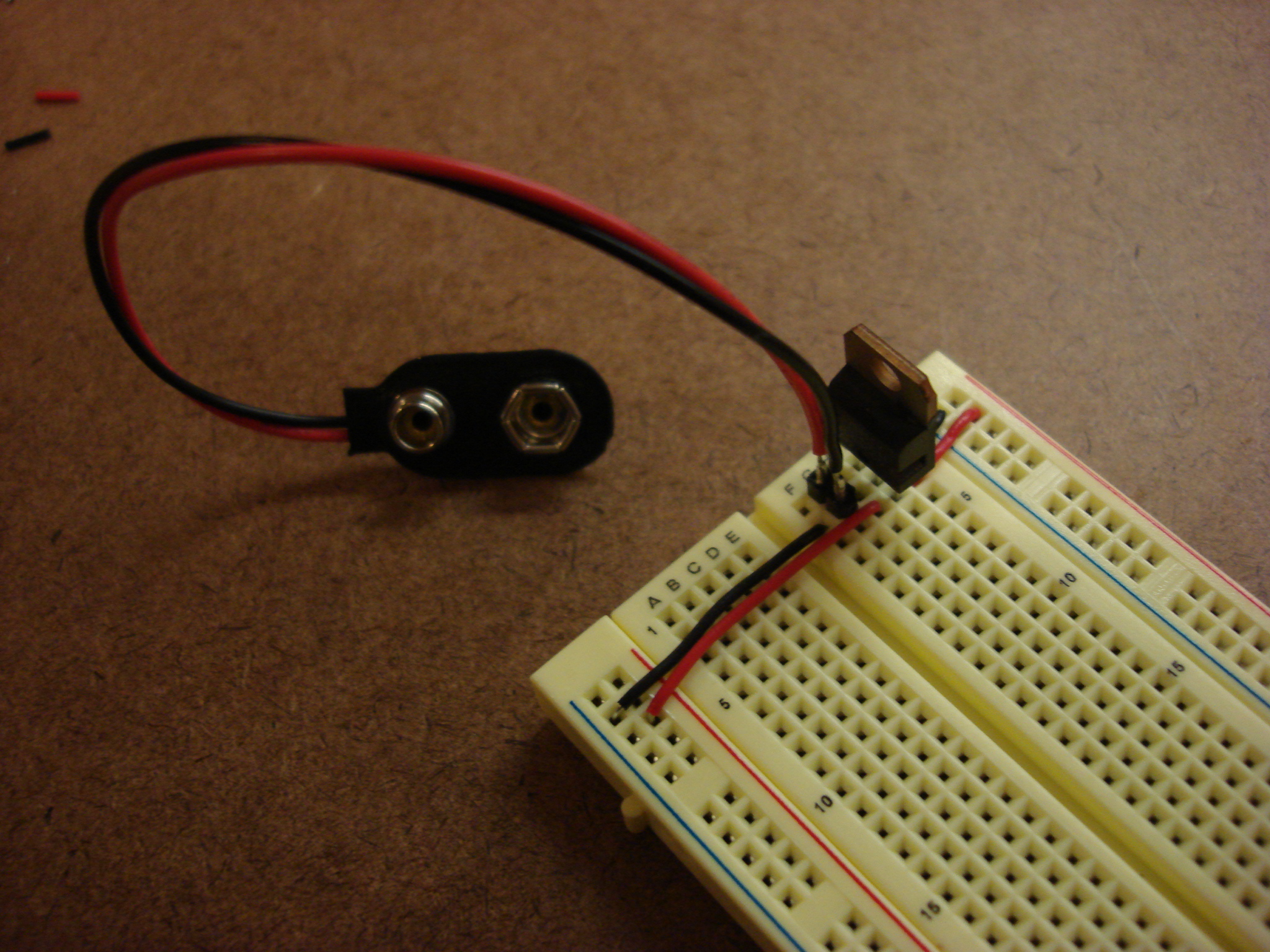
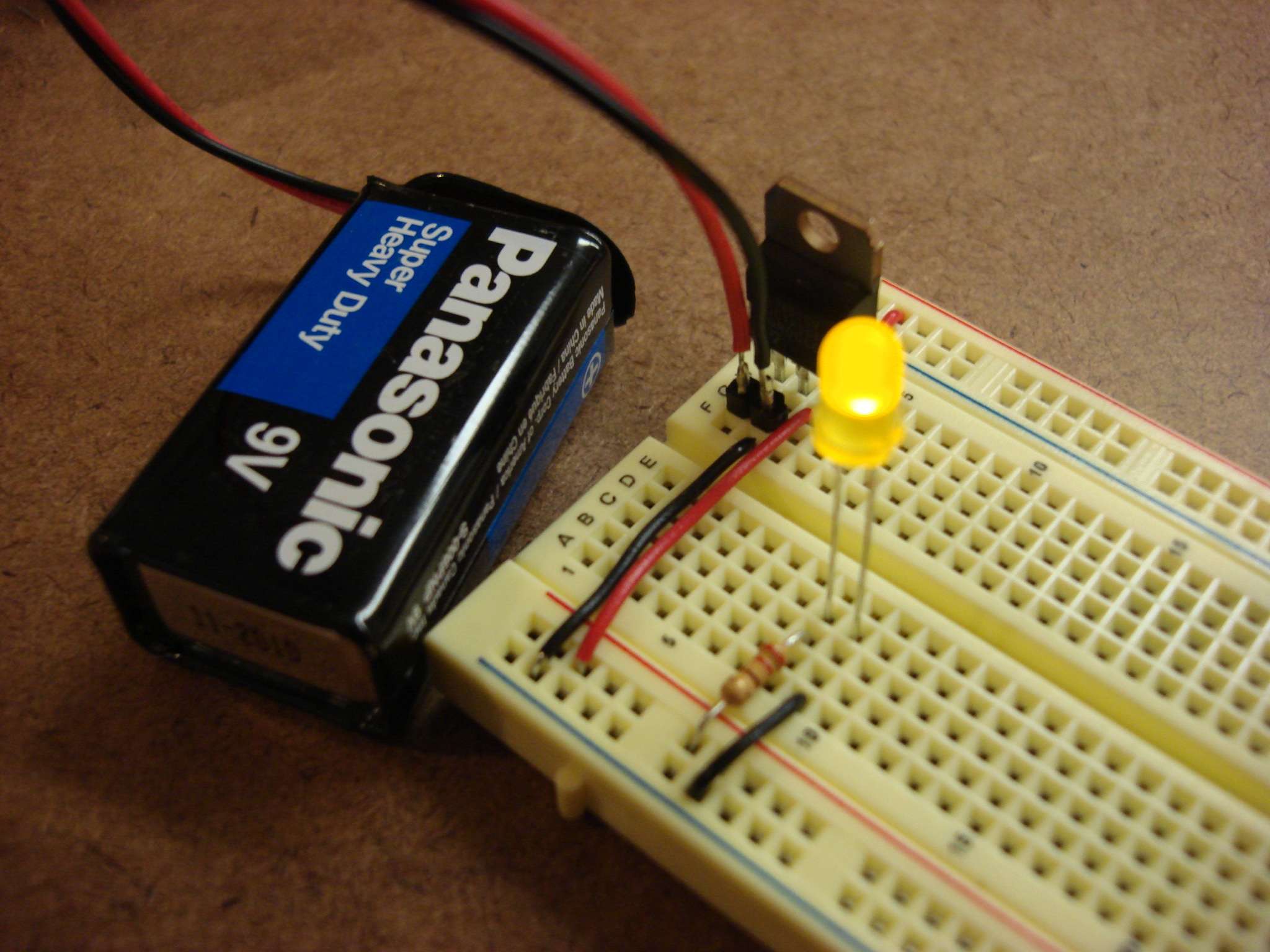
Then got to make some simple circuits. Yay electricity!
And with a potentiometer:
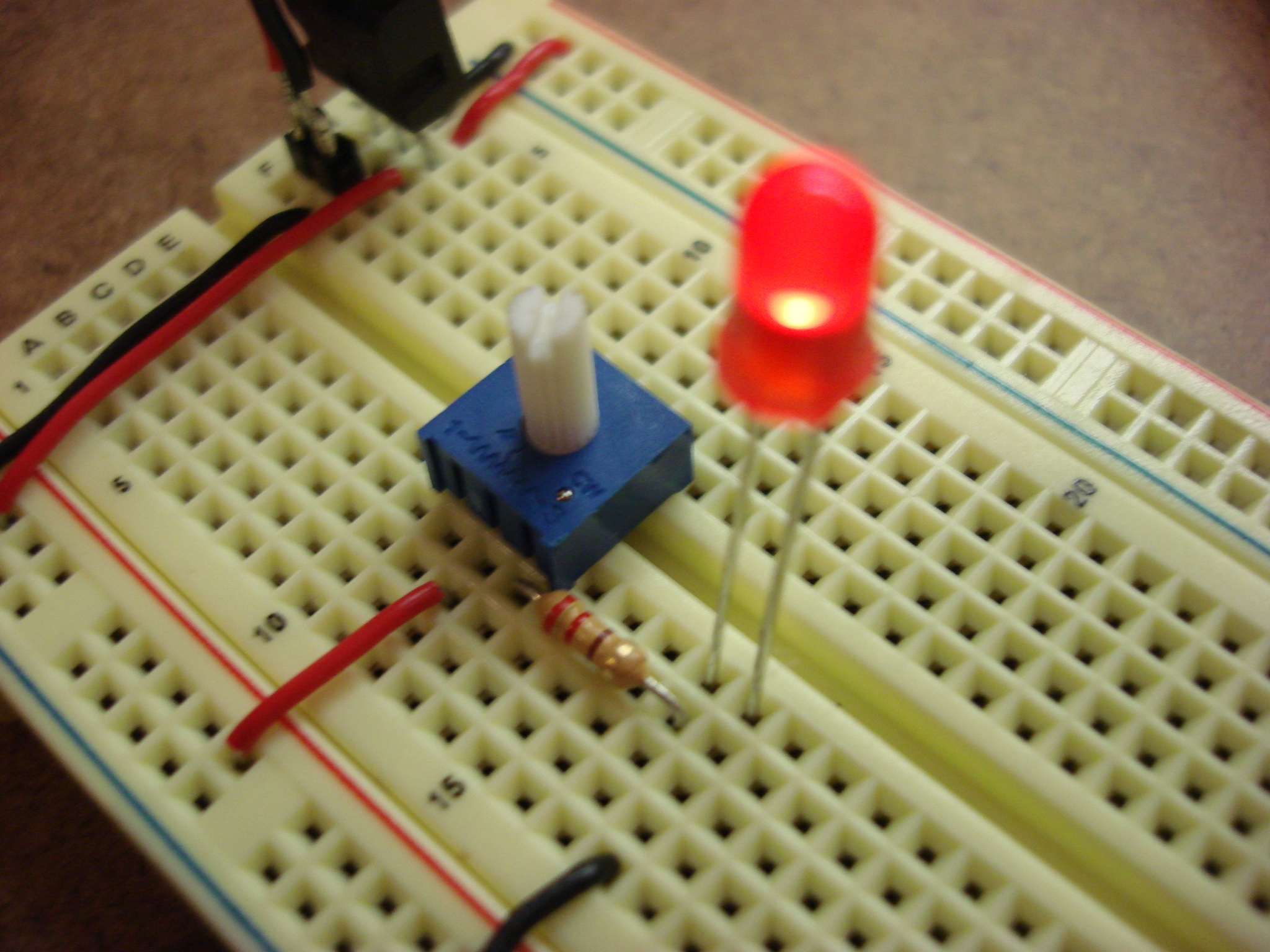
Moving on to the digital circuit with the Arduino. Same effect as the analog circuit but using the microcontroller. The LED is illuminated at varying levels of brightness using Pulse Width Modulation (PWM)…in brief PWM means that the LED is turned on and off very quickly – more quickly that we can see. The concept is based on a duty cycle – the percentage of time that the pulse is active at full voltage compared to the period. A duty cycle of 50% (on at +5v then off at 0v) would provide a net voltage of 2.5v and half brightness of the LED. Map the input from one of the analog inputs on the Arduino to a PWD output and you get analog output.

More fun…playing with Galvanic Skin Response…same circuit…same code [i just noticed that the videos don’t have audio, which only really matters for the bottom video with the speaker]:

Which made me start thinking about other sensors. Here’s an example using an infrared emitter / collector.
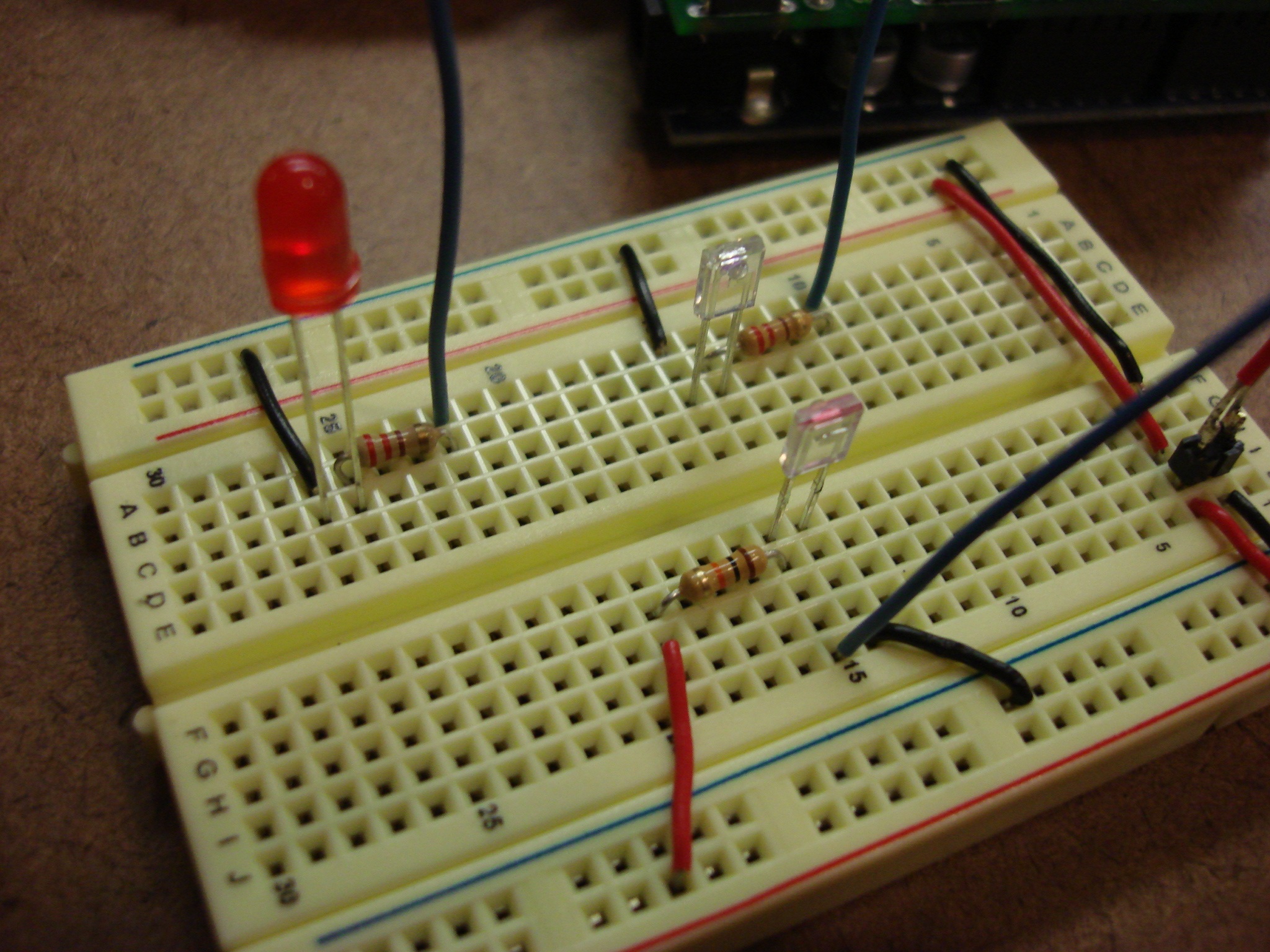
Just about the same code…different sensor:
Which got me thinking about using infrared for heart rate detection. Unfortunately, without an op amp the signal/noise is making it really difficult to get stable readings. However, with just the right pressure on the LEDs I was able to get accurate readings:
Then, just for kicks I started messing with a piezo speaker…fun, but I need to work on the output for better frequency range.
So, off to creating the switch. I routinely get confused with the proper wiring schematic for a pull-down switch. I keep messing it up; it’s incredibly frustrating that I can remember so much but trip up on such a basic circuit. I looked at the schematic, then wired it incorrectly; then looked at someone else’s and wired it incorrectly again. Finally I got it right, but the code didn’t upload successfully (despite the message to the contrary in the Arduino console) which led me to believe that I still didn’t wire it correctly and started over. Eventually, the firmware uploaded and the wiring was right so it worked.
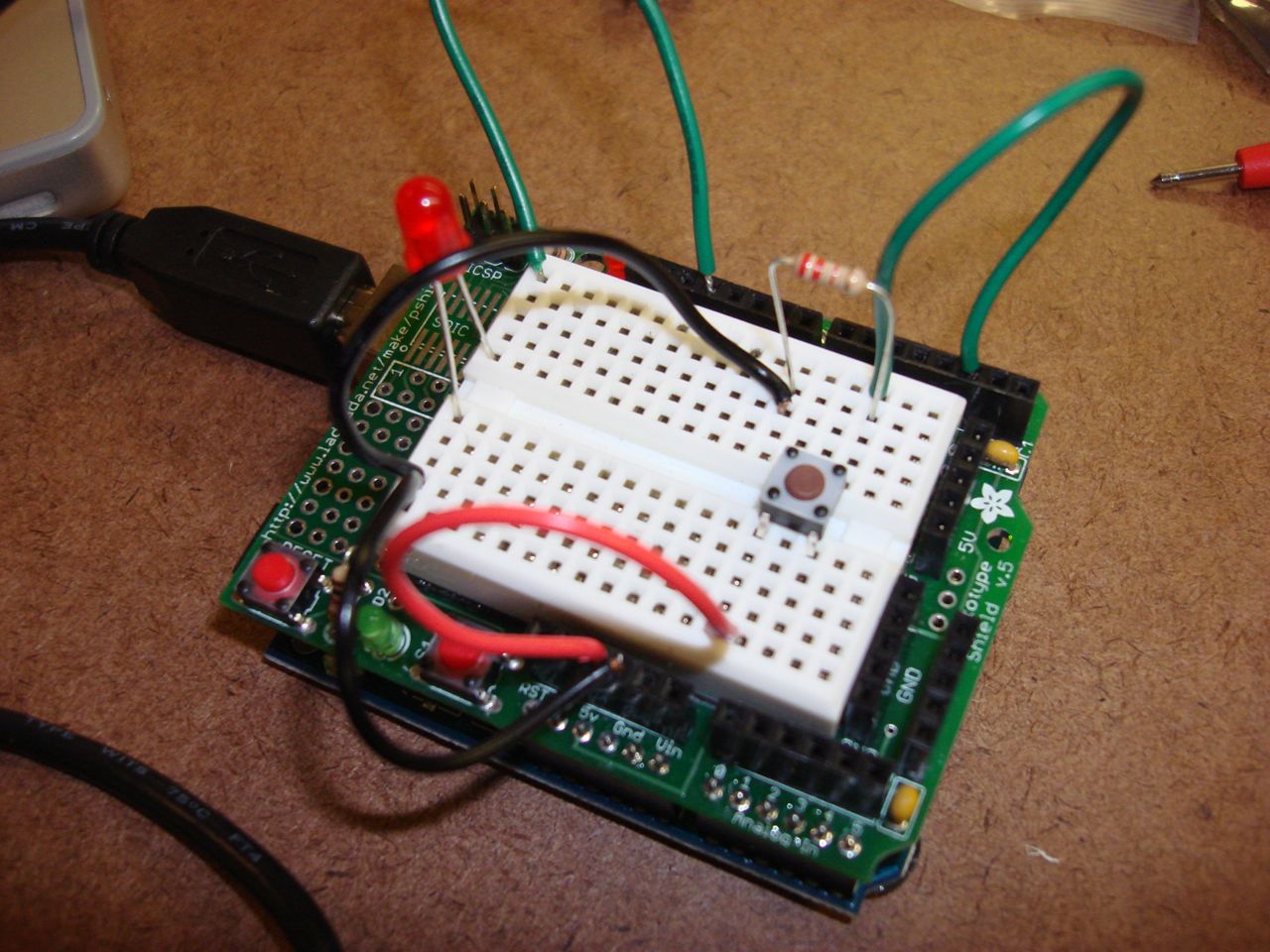
Basic Switch with a pull-down resistor.
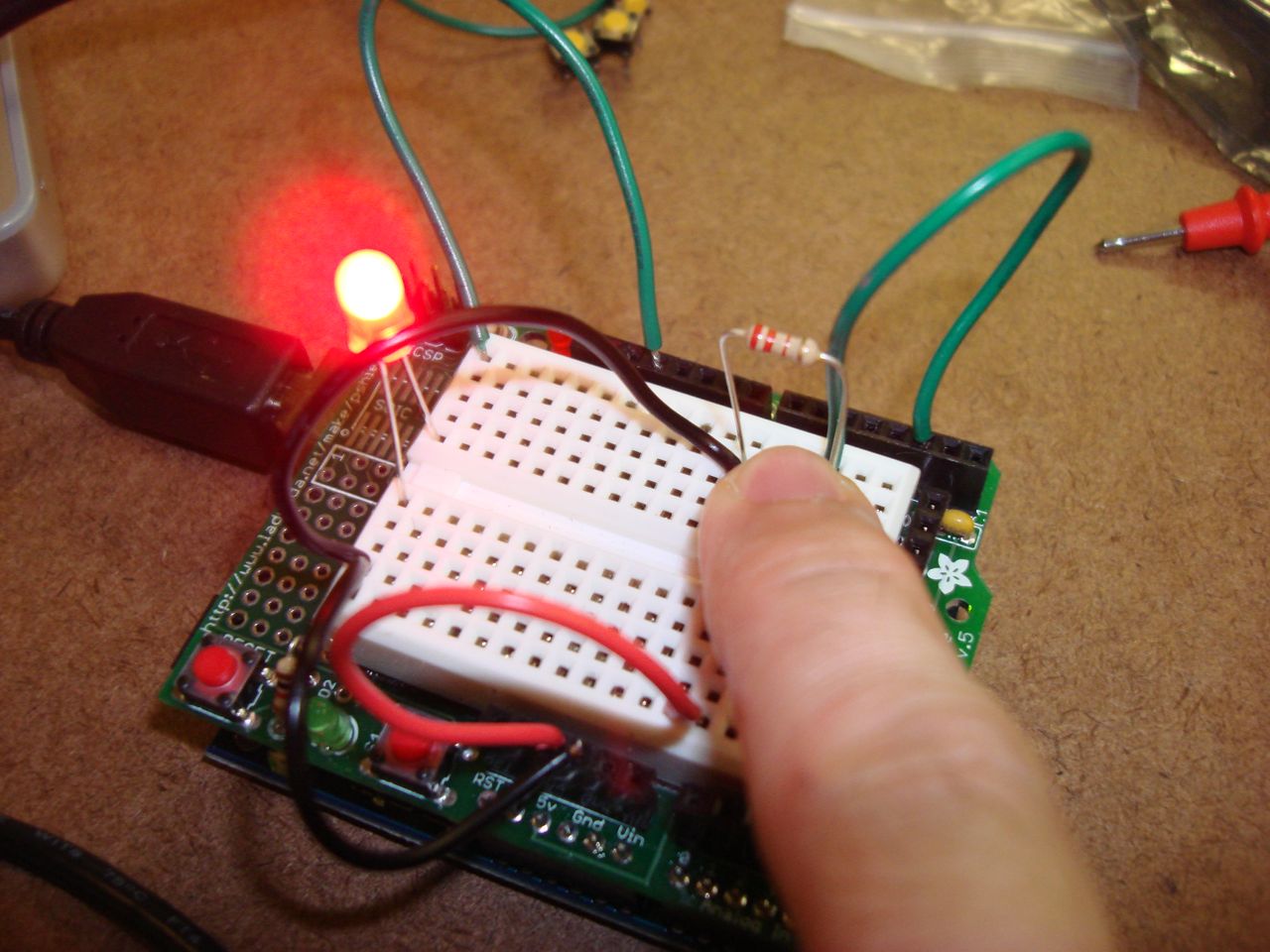
LED illuminated when switch is depressed.
Tom mentioned creating a combination lock…so I took up that challenge. Unfortunately, in hindsight after working through this first version of the project I realize that I ignored his first direction (paraphrased): “Start with the physical reactions rather than the technical details.” So, now I have a four button combination lock that looks like other, commercial devices; what’s unique or interesting about that? How does that expand the human experience?
Regardless, I was able outline a problem and devise the hardware and software to achieve the functionality desired. Namely:
-Multiple buttons
-Arbitrary pattern (hard coded to four presses currently)
-Visual feedback for incorrect code attempt, but only after an entire code has been entered
-Visual feedback for successful unlock
-Relocking with any button press while in an unlocked state
-User entry of a new arbitrary code, but only if in a previously unlocked state
-Visual feedback for the New Code Set state.
-Timeout for partial code entry to return to the initial locked state.
-Packaged in a clean housing. (although the Arduino+prototype shield just BARELY fits in the housing. It’s a bit sloppy)
I don’t have a proper breadboard yet, so I did this work on the cramped prototype shield on my Arduino. This doesn’t have the common power and ground rails that larger breadboards have so it made wiring more difficult, and a bit messy. Eventually I got four surface mount switches on there and an LED to indicate the lock status.
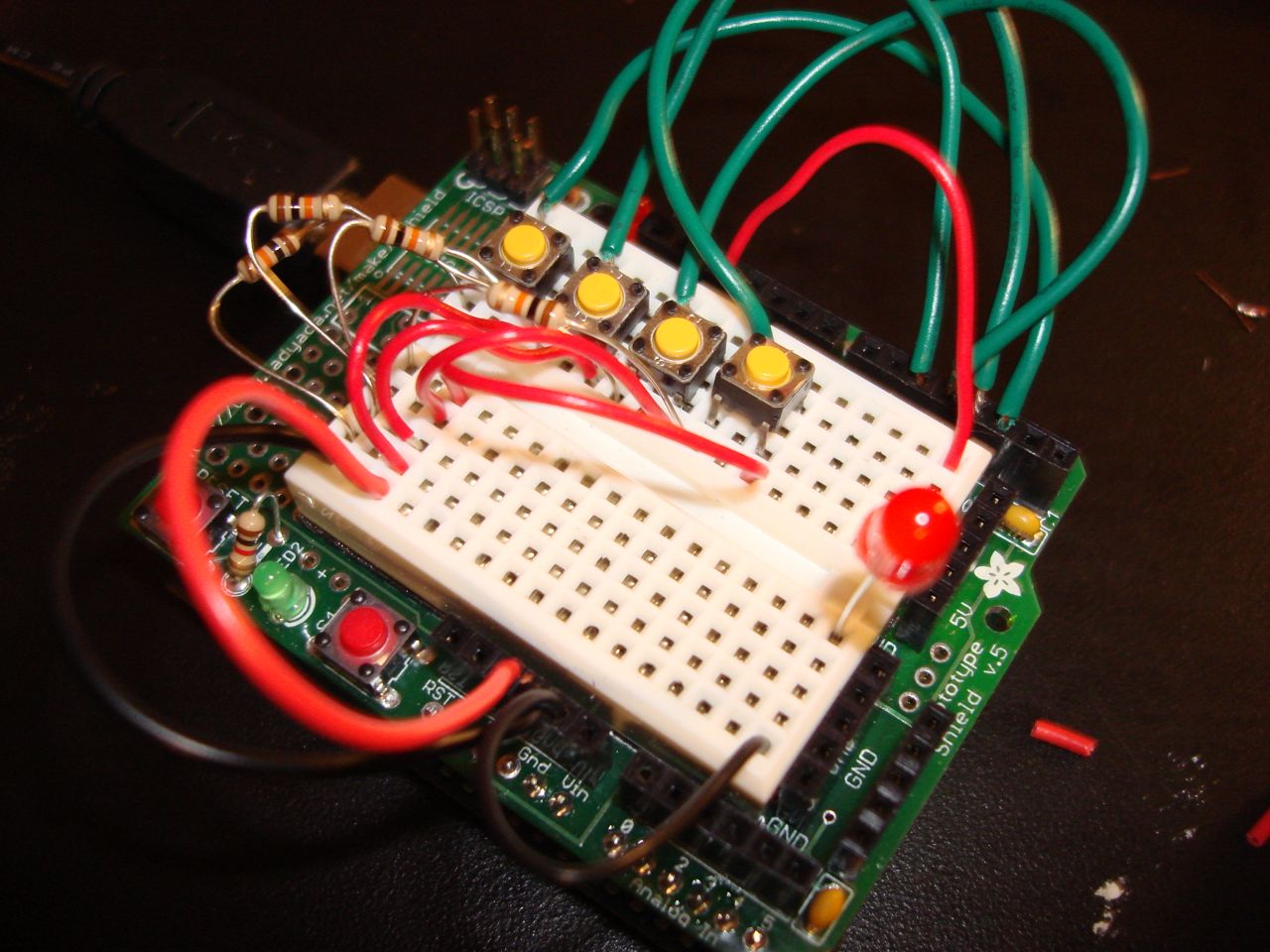
Combination lock prototype.
After the initial rounds of code testing I felt ready to make a more presentable unit. First change was to swap the switches for something friendlier to touch.

New switches. The leads ended up too long and I had to trim them to fit inside the enclosure.
There was a perfect plastic enclosure on the junk shelf in the pcom lab, which resembled security alarm panels I encountered before. Some quick mockups with marker and a bit of Dremel work later I had the switches all ready to go. I also added an new, recessed switch on the back of the housing for entering a new code.

Arduino wired to the switches and unlock LED.
I added a second LED to indicate that the unit is ready to accept a new code. I need to rethink the experience here. The red LED flashes when an incorrect code is entered, and goes solid lit when the correct code is entered. If the unit is already unlocked (red LED is lit) and the reset code button is pressed, the green LED will also turn on (both are on). The next four button presses will become the new code. Pressing the reset button while already in a reset or locked state has no effect. I wonder if users will be confused that the red LED going solid indicates unlock, rather than green. Maybe red solid would indicate locked, green solid would be unlocked and both on would be a reset state. I could still flash the red LED to indicate an incorrect attempt. Hmm…
Here is the “finished” enclosure.
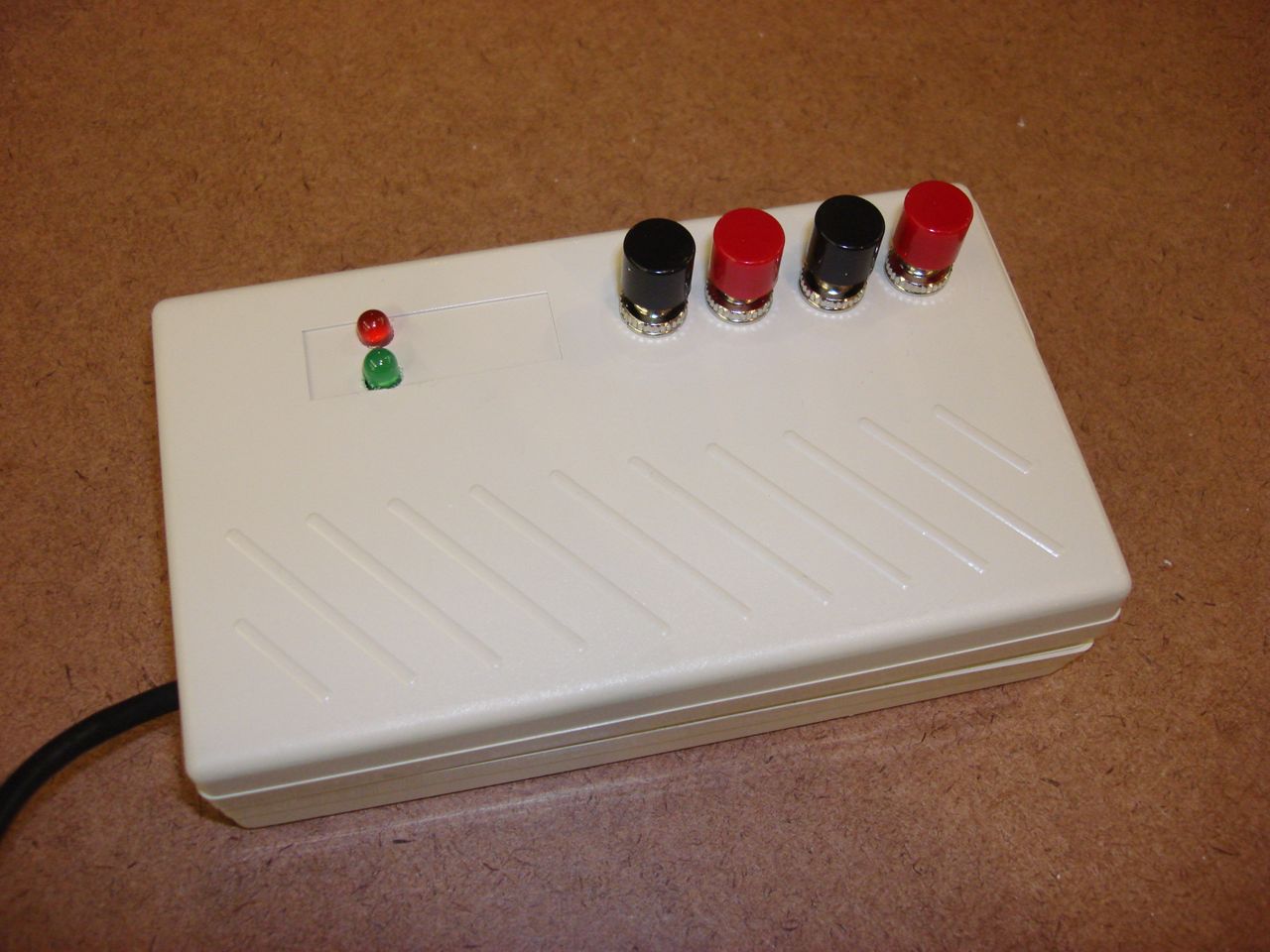
Combination lock v1.0
Arduino code below. I really need to clean it up. I compartmentalized many functions to avoid overlapping code, but my logic is a bit sloppy. I had many issues initially with multiple button presses and switch debouncing. I subsequently added serial output to aid in debugging.
UPDATE: I changed the code to illuminate the red LED when the device is locked, illuminate the green LED when it’s unlocked, and both when in a reset code state. The below code has been updated for this functionality.
#include <SoftwareSerial.h>

// Combination lock
// 3.9.2008 robert carlsen

// have a series of buttons
// press the buttons in the correct sequence - light the LED

// incorrect sequence will flash the LED once and reset, waiting for input

// enable the user to create their own sequence and store it
//*****//

// set up constants for the pinouts
int button0 = 2;
int button1 = 3;
int button2 = 4;
int button3 = 5;

int buttonSet = 6;

int ledUnlock = 11;
int ledLock = 12;

// need to only record once per press, not while it's held down
int firstPress = 1;

// remember the state of the lock
// 0 = locked, 1 = unlocked, 2 = set mode
int lockState = 0;

//timeout
long timeout = 5000;
long lasttime = 0;

//debounce
long debounce = 200;
long lastpress = 0;

// array will store the button sequence
// and set the initial code
// is there a way to store the code across reboots?
int code[4] = {
  button0,button1,button2,button3};

// store the users input
int entry[4];

// use a counter to track the progress of the combination entry
int counter = 0;

void setup(){
  // configure the buttons
  pinMode(button0, INPUT);
  pinMode(button1, INPUT);
  pinMode(button2, INPUT);
  pinMode(button3, INPUT);
  pinMode(buttonSet, INPUT);

  // configure the LEDs
  pinMode(ledUnlock, OUTPUT);
  pinMode(ledLock, OUTPUT);

  // for debugging
  Serial.begin(9600);

  //initially lock
  lock();
}

void loop() {
  int pressCount = 0;
  int pressedButton;

  int state0 = digitalRead(button0);
  int state1 = digitalRead(button1);
  int state2 = digitalRead(button2);
  int state3 = digitalRead(button3);

  if(state0 == HIGH && firstPress) {
    pressedButton = button0;
    pressCount++;
    lasttime = millis();

    Serial.print("button 0 pressed n");
  }
  if(state1 == HIGH && firstPress) {
    pressedButton = button1;
    pressCount++;
    lasttime = millis();
    Serial.print("button 1 pressed n");
  }
  if(state2 == HIGH && firstPress) {
    pressedButton = button2;
    pressCount++;
    lasttime = millis();
    Serial.print("button 2 pressed n");
  }
  if(state3 == HIGH && firstPress) {
    pressedButton = button3;
    pressCount++;
    lasttime = millis();
    Serial.print("button 3 pressed n");
  }

  if(digitalRead(buttonSet) == HIGH && lockState == 1){
    setNewCode();
  }

  // only allow one press at a time
  if(pressCount > 1){
    lock();
  }

  else if(pressCount == 1 && firstPress == 1 && millis() - lastpress > debounce) {
    Serial.print("lockState: ");
    Serial.println(lockState);
    switch(lockState){
    case 0: // locked
      addPress(pressedButton);

      //if four presses have happened then we've rolled over by now
      if(counter >= 4) {
        boolean state = testUnlock();
        if(state){
          unlock();
        }
        else {
          lock();
        }
      }
      break;
    case 1: // unlocked
      lock();
      break;
    case 2: // set new code
      addPress(pressedButton);
      //if four presses have happened then we've rolled over by now
      if(counter >= 4) {
        lock();
      }
      break;
    }

    firstPress = 0;
    lastpress = millis();
  }

  // reset the firstPress variable one all the buttons have been released
  if(state0 == LOW && state1 == LOW && state2 == LOW && state3 == LOW){
    firstPress = 1;
  }

  // timeout if the code has only been partially entered
  if(millis() - lasttime > timeout && lockState == 0 && counter > 0){
    Serial.print("timeout: ");
    Serial.print(millis()-lasttime);
    Serial.println(" ms");
    lasttime = millis();

    lock();
  }

  //  delay(100);
}

void addPress(int currentPress) {
  Serial.print("counter: ");
  Serial.println(counter,DEC);
  if(lockState == 0) {
    entry[counter] = currentPress;
  }
  else {
    code[counter] = currentPress;
  }
  counter++;

}

boolean testUnlock() {
  // compare the entry and code arrays
  for(int i=0;i<4;i++){
    if(code[i] != entry[i]){
      // only one mismatched entry will fail
      return 0;
    }
  }
  // if all have passed then the combination must be correct
  return 1;
}

void lock() {
  // turn off the unlock light (and flash the lock light
  digitalWrite(ledUnlock,LOW);
  blinkLed(ledLock);
  digitalWrite(ledLock, HIGH);

  lockState = 0;

  // clear the users input
  entry[4];

  // reset the counter
  counter = 0;

  Serial.print("locked n");
}

void unlock() {
  // turn on the unlock light, turn off the lock light
  digitalWrite(ledUnlock,HIGH);
  digitalWrite(ledLock, LOW);

  lockState = 1;

  // clear the user input
  entry[4];

  //reset the counter
  counter = 0;

  Serial.print("unlocked n");
}

void setNewCode() {
  Serial.println("Setting new code mode");

  // illuminate both lights
  digitalWrite(ledLock, HIGH);
  digitalWrite(ledUnlock, HIGH);
  lockState = 2;
}

void blinkLed(int led) {
  digitalWrite(led,LOW);
  delay(100);
  digitalWrite(led,HIGH);
  delay(200);
  digitalWrite(led,LOW);
}
]]>Nevertheless, I’ll update this shortly with the actual breadboard work.
]]>