<?xml version="1.0" encoding="UTF-8"?>
<rss version="2.0"
	xmlns:content="http://purl.org/rss/1.0/modules/content/"
	xmlns:wfw="http://wellformedweb.org/CommentAPI/"
	xmlns:dc="http://purl.org/dc/elements/1.1/"
	xmlns:atom="http://www.w3.org/2005/Atom"
	xmlns:sy="http://purl.org/rss/1.0/modules/syndication/"
	xmlns:slash="http://purl.org/rss/1.0/modules/slash/"
	>

<channel>
	<title>exploration &#187; tutorial</title>
	<atom:link href="http://robertcarlsen.net/tag/tutorial/feed" rel="self" type="application/rss+xml" />
	<link>http://robertcarlsen.net</link>
	<description>accounts of success and misadventure</description>
	<lastBuildDate>Tue, 13 Jul 2010 14:37:06 +0000</lastBuildDate>
	<generator>http://wordpress.org/?v=2.8.4</generator>
	<language>en</language>
	<sy:updatePeriod>hourly</sy:updatePeriod>
	<sy:updateFrequency>1</sy:updateFrequency>
			<item>
		<title>Arduino in Eclipse</title>
		<link>http://robertcarlsen.net/2009/10/31/arduino-in-eclipse-989</link>
		<comments>http://robertcarlsen.net/2009/10/31/arduino-in-eclipse-989#comments</comments>
		<pubDate>Sun, 01 Nov 2009 02:06:19 +0000</pubDate>
		<dc:creator>Robert</dc:creator>
				<category><![CDATA[itp]]></category>
		<category><![CDATA[arduino]]></category>
		<category><![CDATA[eclipse]]></category>
		<category><![CDATA[software]]></category>
		<category><![CDATA[tutorial]]></category>

		<guid isPermaLink="false">http://robertcarlsen.net/?p=989</guid>
		<description><![CDATA[This tutorial describes how to set up Eclipse for Arduino (AVR) C/C++ development. Eclipse is a full-featured Integrated Development Environment with modern editor features such as syntax highlighting, code completion and error checking. I became interested in using Eclipse for Arduino development as I&#8217;m often simultaneously developing firmware for the chip and visualization software in [...]]]></description>
			<content:encoded><![CDATA[<p>This tutorial describes how to set up Eclipse for Arduino (AVR) C/C++ development. <a class="external text" title="http://www.eclipse.org/downloads/" rel="nofollow" href="http://www.eclipse.org/downloads/" onclick="pageTracker._trackPageview('/outgoing/www.eclipse.org/downloads/?referer=');">Eclipse</a> is a full-featured Integrated Development Environment with modern editor features such as syntax highlighting, code completion and error checking. I became interested in using Eclipse for Arduino development as I&#8217;m often simultaneously developing firmware for the chip and visualization software in a Java / Processing applet. Since I&#8217;m already using Eclipse for Java / <a title="Processing in Eclipse" href="http://itpedia.nyu.edu/wiki/Processing_in_Eclipse" onclick="pageTracker._trackPageview('/outgoing/itpedia.nyu.edu/wiki/Processing_in_Eclipse?referer=');"> Processing</a>, it&#8217;s nice to be able to work in the same environment for both.</p>
<p>The <a class="external text" title="http://www.arduino.cc/" rel="nofollow" href="http://www.arduino.cc/" onclick="pageTracker._trackPageview('/outgoing/www.arduino.cc/?referer=');">Arduino</a> site has a decent <a class="external text" title="http://www.arduino.cc/playground/Code/Eclipse" rel="nofollow" href="http://www.arduino.cc/playground/Code/Eclipse" onclick="pageTracker._trackPageview('/outgoing/www.arduino.cc/playground/Code/Eclipse?referer=');">walkthrough</a>, but I found some of the steps to be confusing or outdated. Hopefully, this will get you up and running quickly.<span id="more-989"></span></p>
<table id="toc" class="toc" border="0" summary="Contents">
<tbody>
<tr>
<td>
<div id="toctitle">
<h2>Contents</h2>
</div>
<ul style="width: 100%;">
<li class="toclevel-1"><a href="#Overview"><span class="tocnumber">1</span> <span class="toctext">Overview</span></a></li>
<li class="toclevel-1"><a href="#Setup_Eclipse"><span class="tocnumber">2</span> <span class="toctext">Setup Eclipse</span></a></li>
<li class="toclevel-1"><a href="#Create_an_Arduino_project"><span class="tocnumber">3</span> <span class="toctext">Create an Arduino project</span></a></li>
<li class="toclevel-1"><a href="#Add_a_new_main.c_source_file"><span class="tocnumber">4</span> <span class="toctext">Add a new main.c source file</span></a></li>
<li class="toclevel-1"><a href="#Building"><span class="tocnumber">5</span> <span class="toctext">Building</span></a></li>
<li class="toclevel-1"><a href="#New_projects"><span class="tocnumber">6</span> <span class="toctext">New projects</span></a></li>
<li class="toclevel-1"><a href="#Follow_up"><span class="tocnumber">7</span> <span class="toctext">Follow up</span></a></li>
</ul>
</td>
</tr>
</tbody>
</table>
<p><a name="Overview"></a></p>
<h3><span class="mw-headline">Overview</span></h3>
<p>Most of this setup will have to happen once, then starting new projects is typically as easy as duplicating a simple, skeleton project. Getting the paths and configuration options correct for this initial project was the most confusing for me, but I haven&#8217;t needed to tinker with them again.</p>
<p>To begin, download <a class="external text" title="http://www.eclipse.org/downloads/download.php?file=/technology/epp/downloads/release/galileo/SR1/eclipse-cpp-galileo-SR1-macosx-cocoa.tar.gz" rel="nofollow" href="http://www.eclipse.org/downloads/download.php?file=/technology/epp/downloads/release/galileo/SR1/eclipse-cpp-galileo-SR1-macosx-cocoa.tar.gz" onclick="pageTracker._trackPageview('/outgoing/www.eclipse.org/downloads/download.php?file=/technology/epp/downloads/release/galileo/SR1/eclipse-cpp-galileo-SR1-macosx-cocoa.tar.gz&amp;referer=');">Eclipse for C/C++ Developers</a>, or install the C/C++ plugin for your existing Eclipse version (these instructions assume Eclipse 3.5 Galileo). To install an Eclipse plugin:</p>
<ul>
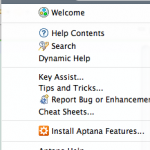
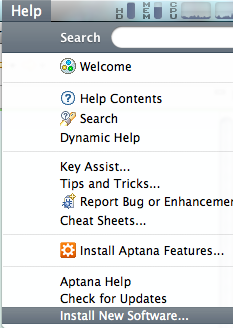
<li><a href="http://robertcarlsen.net/blog/wp-content/uploads/2009/10/install-new.png" rel="lightbox[989]"><img class="alignright size-thumbnail wp-image-999" style="clear: both;" title="install new" src="http://robertcarlsen.net/blog/wp-content/uploads/2009/10/install-new-150x150.png" alt="install new" width="150" height="150" /></a>Open Eclipse. Navigate to Help &gt; Install New Software&#8230;</li>
</ul>
<ul>
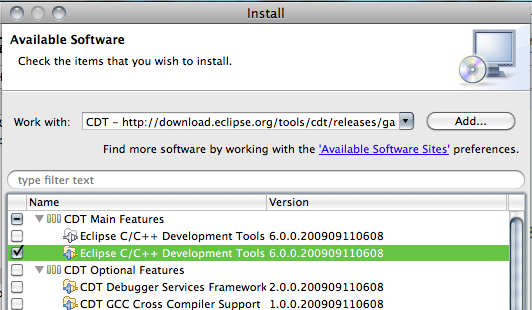
<li><a href="http://robertcarlsen.net/blog/wp-content/uploads/2009/10/Select-CDT.png" rel="lightbox[989]"><img class="alignright size-thumbnail wp-image-1001" style="clear: both;" title="Select CDT" src="http://robertcarlsen.net/blog/wp-content/uploads/2009/10/Select-CDT-150x150.png" alt="Select CDT" width="150" height="150" /></a>Select CDT from the drop down menu. If CDT is not present, then click the add button and paste the link to the plugin update site in the Location field: <a class="external free" title="http://download.eclipse.org/tools/cdt/releases/galileo" rel="nofollow" href="http://download.eclipse.org/tools/cdt/releases/galileo" onclick="pageTracker._trackPageview('/outgoing/download.eclipse.org/tools/cdt/releases/galileo?referer=');">http://download.eclipse.org/tools/cdt/releases/galileo</a></li>
<li>Select Eclipse C/C++ Development Tools, then click &#8220;Next &gt;&#8221; and &#8220;Finish&#8221; on the following screen. This may prompt you to restart Eclipse, however select No so we can install the next plugin.</li>
</ul>
<ul>
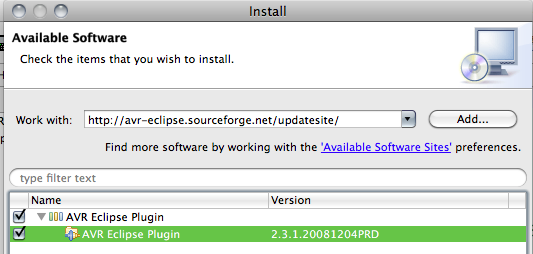
<li>Return to the Install New Software dialog. Paste in the location for the <a class="external text" title="http://avr-eclipse.sourceforge.net/wiki/index.php/Plugin_Download" rel="nofollow" href="http://avr-eclipse.sourceforge.net/wiki/index.php/Plugin_Download" onclick="pageTracker._trackPageview('/outgoing/avr-eclipse.sourceforge.net/wiki/index.php/Plugin_Download?referer=');">AVR Plugin</a> and select it and click Next to install. You may have to agree to license terms. <a class="external free" title="http://avr-eclipse.sourceforge.net/updatesite/" rel="nofollow" href="http://avr-eclipse.sourceforge.net/updatesite/" onclick="pageTracker._trackPageview('/outgoing/avr-eclipse.sourceforge.net/updatesite/?referer=');">http://avr-eclipse.sourceforge.net/updatesite/</a></li>
</ul>
<ul>
<li><a href="http://robertcarlsen.net/blog/wp-content/uploads/2009/10/AVR-plugin.png" rel="lightbox[989]"><img class="alignright size-thumbnail wp-image-994" style="clear: both;" title="AVR plugin" src="http://robertcarlsen.net/blog/wp-content/uploads/2009/10/AVR-plugin-150x150.png" alt="AVR plugin" width="150" height="150" /></a>AVR tools. You should install tools appropriate for your platform:
<ul>
<li>Mac OS X: <a class="external text" title="http://www.obdev.at/products/crosspack/index.html" rel="nofollow" href="http://www.obdev.at/products/crosspack/index.html" onclick="pageTracker._trackPageview('/outgoing/www.obdev.at/products/crosspack/index.html?referer=');">CrossPack</a> (Note: I&#8217;m targeting this tutorial for an OS X system)</li>
<li>Linux: apt-get install avrdude binutils-avr gcc-avr avr-libc gdb-avr</li>
<li>Windows: <a class="external text" title="http://winavr.sourceforge.net/" rel="nofollow" href="http://winavr.sourceforge.net/" onclick="pageTracker._trackPageview('/outgoing/winavr.sourceforge.net/?referer=');">WinAVR</a></li>
</ul>
</li>
</ul>
<p><a name="Setup_Eclipse"></a></p>
<h3><span class="mw-headline">Setup Eclipse</span></h3>
<p><a href="http://robertcarlsen.net/blog/wp-content/uploads/2009/10/AVR-Paths.png" rel="lightbox[989]"><img class="alignright size-thumbnail wp-image-993" style="clear: both;" title="AVR Paths" src="http://robertcarlsen.net/blog/wp-content/uploads/2009/10/AVR-Paths-150x150.png" alt="AVR Paths" width="150" height="150" /></a></p>
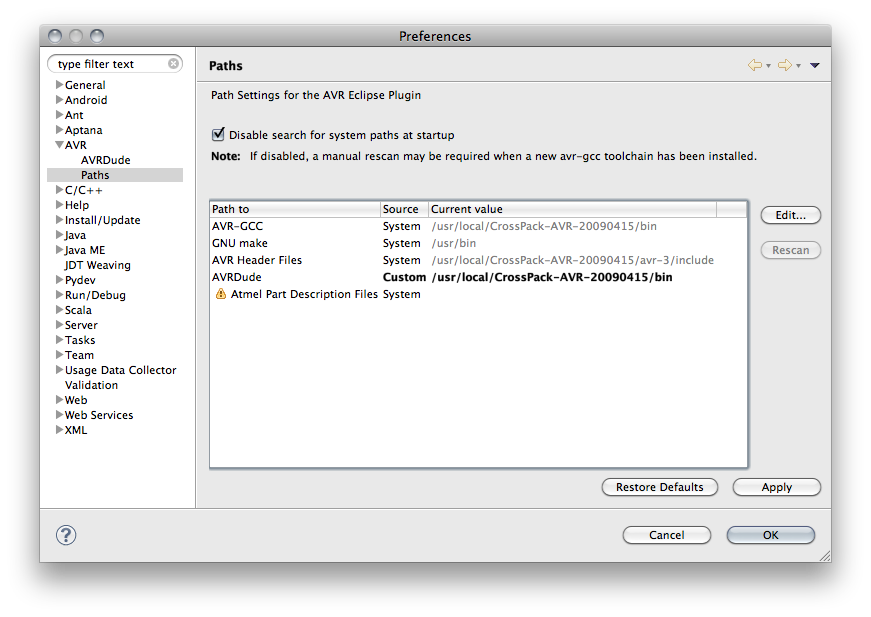
<p>After the plugins have been installed they need to be configured. Specifically, the paths to the AVR Tools need to be verified.</p>
<ul>
<li>Open the Eclipse Preferences: Eclipse &gt; Preferences. Twirl down the AVR category and select &#8220;Paths&#8221;. Verify that the paths have located the correct AVR toolkit (CrossPack-AVE on OS X). You can edit these fields as necessary.</li>
</ul>
<ul>
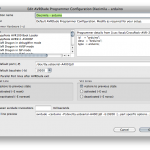
<li><a href="http://robertcarlsen.net/blog/wp-content/uploads/2009/10/AVRDude.png" rel="lightbox[989]"><img class="alignright size-thumbnail wp-image-995" style="clear: both;" title="AVRDude" src="http://robertcarlsen.net/blog/wp-content/uploads/2009/10/AVRDude-150x150.png" alt="AVRDude" width="150" height="150" /></a>Select the AVRDude category. I&#8217;ve found that I need to add a Programmer configuration for each Arduino (or USB to Serial adapter) that I use. Please let me know if you can get a better solution working with wildcards.
<ul>
<li>Give this configuration a descriptive name. I&#8217;m using &#8220;Arduino Diecimila&#8221;.</li>
<li>Select &#8220;Arduino&#8221; as the Programmer Hardware</li>
<li>Enter the correct port for your Arduino. You can display this by plugging the Arduino into the computer, opening the Terminal then typing: /dev/tty.usbserial then hitting the Tab key. The remainder of the port name should appear.</li>
<li>Set the baud rate to 19200</li>
<li>Click OK. Then close the preferences.</li>
</ul>
</li>
</ul>
<p><a name="Create_an_Arduino_project"></a></p>
<h3><span class="mw-headline">Create an Arduino project</span></h3>
<p>For the first project you&#8217;ll need to manually set up the configuration. I&#8217;d *highly* recommend making a basic blink sketch, then duplicate it for each new project. This is what the tutorial will set up. Alternatively, you can try importing this basic project, but may have to set up the paths for your system anyway. <a class="external text" title="http://robertcarlsen.net/media/itp/hello_blink.tar.gz" rel="nofollow" href="http://robertcarlsen.net/media/itp/hello_blink.tar.gz">Eclipse Blink Sketch</a></p>
<ul>
<li>Go to File -&gt; New -&gt; C Project</li>
<li>Select Empty Project under AVR Cross Target Application and name the project &#8220;Hello_Blink&#8221;.</li>
<li>Click Finish.</li>
<li>Select the &#8220;Hello_Blink&#8221; project in the Project Explorer panel, then navigate to Project &gt; Properties menu.</li>
<li>Twirl down the AVR category and select AVRDude.
<ul>
<li>Select your Arduino from the Programmer configuration menu</li>
</ul>
</li>
<li>Select Target Hardware at left.
<ul>
<li>Ensure that your Arduino is plugged into your computer via USB (and is powered on).</li>
<li>Click &#8220;Load from MCU&#8221;. This should query the Arduino for it&#8217;s type and detect it correctly.
<ul>
<li>If this doesn&#8217;t work, typically the Diecimila is an ATmega168 while the Duemilanove is an ATmega328</li>
</ul>
</li>
</ul>
</li>
</ul>
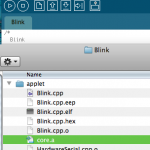
<p>Each Ardiuno project needs to include the Ardunio core library. This file is compiled automatically by the Arduino IDE. While you could compile it yourself in Eclipse, the easiest way to get it is to build a simple sketch in the Arduino IDE, then copy the &#8220;core.a&#8221; file into your Eclipse project.</p>
<ul>
<li><a href="http://robertcarlsen.net/blog/wp-content/uploads/2009/10/core.a-file.png" rel="lightbox[989]"><img class="alignright size-thumbnail wp-image-1002" title="core.a file" src="http://robertcarlsen.net/blog/wp-content/uploads/2009/10/core.a-file-150x150.png" alt="core.a file" width="150" height="150" /></a>Start the Arduino IDE</li>
<li>Open the Blink sketch (File &gt; Examples &gt; Digital &gt; Blink)</li>
<li>Click the &#8220;Verify&#8221; button to compile the sketch</li>
<li>Select Sketch &gt; Show Sketch Folder</li>
<li>Drag core.a into your Eclipse Hello_Blink project to copy it in.</li>
<li>Right-click on core.a, select Rename and change it to &#8220;libcore.a&#8221;</li>
</ul>
<p>Now we set up the correct building settings:</p>
<ul>
<li>Twirl down C/C++ Build and select Settings</li>
<li>Select &#8220;Additional Tools in Toolchain&#8221;</li>
<li>Check the following:
<ul>
<li>Generate HEX for Flash Memory</li>
<li>Print Size</li>
<li>AVRDude</li>
</ul>
</li>
<li>Uncheck Generate Extended Listing</li>
</ul>
<ul>
<li>Select AVR Compiler
<ul>
<li>Change the command from avr-gcc to avr-g++</li>
</ul>
</li>
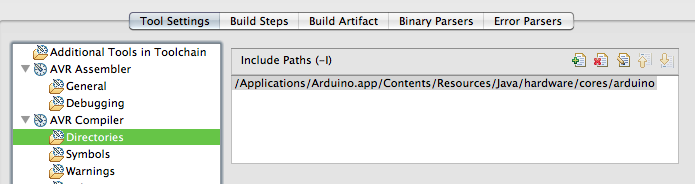
<li><a href="http://robertcarlsen.net/blog/wp-content/uploads/2009/10/include-path.png" rel="lightbox[989]"><img class="alignright size-thumbnail wp-image-998" title="include path" src="http://robertcarlsen.net/blog/wp-content/uploads/2009/10/include-path-150x150.png" alt="include path" width="150" height="150" /></a>Select AVR Compiler &gt; Directories
<ul>
<li>Add an Include Path to the header files within the Arduino.app bundle (look at the screenshot)</li>
<li>You can right-click on Arduino.app and select Show Package Contents, then navigate to the Contents/Resources/Java/hardware/cores/arduino folder</li>
</ul>
</li>
</ul>
<ul>
<li>Select AVR Compiler &gt; Debugging
<ul>
<li>Set &#8220;Generate Debugging info&#8221; to &#8220;No debugging info&#8221;</li>
</ul>
</li>
<li>Select AVR Compiler
<ul>
<li>Set the Optimization level to Size Optimizations</li>
</ul>
</li>
</ul>
<ul>
<li>Select AVR Assembler &gt; Debugging
<ul>
<li>Set &#8220;Generate Debugging info&#8221; to &#8220;No debugging info&#8221;</li>
</ul>
</li>
</ul>
<ul>
<li><a href="http://robertcarlsen.net/blog/wp-content/uploads/2009/10/core-lib.png" rel="lightbox[989]"><img class="alignright size-thumbnail wp-image-996" title="core lib" src="http://robertcarlsen.net/blog/wp-content/uploads/2009/10/core-lib-150x150.png" alt="core lib" width="150" height="150" /></a>Select AVR C Linker &gt; Libraries
<ul>
<li>Add a library named &#8220;core&#8221;</li>
<li>Add a library path. If libcore.a is in the Hello_Blink project folder, the path will be &#8220;${workspace_loc:/Hello_Blink}&#8221;</li>
</ul>
</li>
</ul>
<p><a name="Add_a_new_main.c_source_file"></a></p>
<h3><span class="mw-headline">Add a new main.c source file</span></h3>
<p>This file will contain your typical Arduino sketch code. There are additional bits of code that are typically added automatically by the Arduino IDE which need to be explicitly written in Eclipse. Feel free to copy the below code.</p>
<ul>
<li>Go to File &gt; New&#8230; &gt; C Source File. Name this file main.c</li>
<li>Paste in the following for a basic blink sketch:</li>
</ul>
<pre class="brush: cpp;">
#include &quot;WProgram.h&quot;

// prototypes
void blink(int n, int d);

// variables
int ledPin = 13; // LED connected to digital pin 13

void setup(){
Serial.begin(9600);	// opens serial port, sets data rate to 9600 bps
pinMode(ledPin, OUTPUT);      // sets the digital pin as output
Serial.println(&quot;------------------&quot;);
Serial.println(&quot;   hello world&quot;);
Serial.println(&quot;------------------&quot;);
}

void loop(){

  blink(3, 50); // blink led (n times, ms interval)
  delay(1000); // wait 1 sec
}

void blink(int n, int d){
  for (int i=0; i&lt;n; i++) {
    digitalWrite(ledPin, HIGH);
    delay(d/2);
    digitalWrite(ledPin, LOW);
    delay(d/2);
  }
}

int main(void)
{
init();

setup();

for (;;)
loop();

return 0;
}
</pre>
<p><a name="Building"></a></p>
<h3><span class="mw-headline">Building</span></h3>
<p>When you&#8217;re ready to build and upload to the Arduino, click the Hammer icon. This should compile your program and then run avrdude, which uploads to the Arduino.</p>
<p><a name="New_projects"></a></p>
<h3><span class="mw-headline">New projects</span></h3>
<p>Duplicating a project in Eclipse is as simple as selecting the source project in the Project Explorer panel, copying it (Edit &gt; Copy) then paste. Eclipse will prompt you for a new name , then will create a new, duplicate project in the workspace.</p>
<p>If you keep the blink sketch intact, you should be able to duplicate it each time and avoid the above setup.</p>
<p><a name="Follow_up"></a></p>
<h3><span class="mw-headline">Follow up</span></h3>
<p><a href="http://robertcarlsen.net/blog/wp-content/uploads/2009/10/perspectives.png" rel="lightbox[989]"><img class="alignright size-thumbnail wp-image-1000" title="perspectives" src="http://robertcarlsen.net/blog/wp-content/uploads/2009/10/perspectives-150x100.png" alt="perspectives" width="150" height="100" /></a></p>
<p>You should be all set to work on Arduino projects in Eclipse. Note that Eclipse uses various &#8220;perspectives&#8221; for different modes and programming languages. Typically, you&#8217;ll be working in the C/C++ perspective while working on Arduino code. If you&#8217;d like to switch back to the Java perspective for working with Processing, select it from the perspectives at the upper right of the main window, or Navigate to Window &gt; Open Perspective &gt; Other&#8230;</p>
]]></content:encoded>
			<wfw:commentRss>http://robertcarlsen.net/2009/10/31/arduino-in-eclipse-989/feed</wfw:commentRss>
		<slash:comments>20</slash:comments>
		</item>
		<item>
		<title>Using Arduino in Xcode</title>
		<link>http://robertcarlsen.net/2009/02/28/using-arduino-in-xcode-532</link>
		<comments>http://robertcarlsen.net/2009/02/28/using-arduino-in-xcode-532#comments</comments>
		<pubDate>Sat, 28 Feb 2009 22:31:40 +0000</pubDate>
		<dc:creator>Robert</dc:creator>
				<category><![CDATA[make]]></category>
		<category><![CDATA[arduino]]></category>
		<category><![CDATA[itp]]></category>
		<category><![CDATA[mac]]></category>
		<category><![CDATA[programming]]></category>
		<category><![CDATA[project]]></category>
		<category><![CDATA[template]]></category>
		<category><![CDATA[tutorial]]></category>
		<category><![CDATA[xcode]]></category>

		<guid isPermaLink="false">http://robertcarlsen.net/blog/?p=532</guid>
		<description><![CDATA[While the Arduino IDE (Integrated Development Environment) is relatively simple way to program the Arduino hardware, I found myself getting frustrated by it&#8217;s limited features after spending time using Xcode and Eclipse. There are some simple tutorials available online which demonstrate how to set up Xcode for programming the Arduino, however these didn&#8217;t &#8220;just work&#8221; [...]]]></description>
			<content:encoded><![CDATA[<p>While the Arduino IDE (Integrated Development Environment) is relatively simple way to program the Arduino hardware, I found myself getting frustrated by it&#8217;s limited features after spending time using Xcode and Eclipse. There are some simple tutorials available online which demonstrate how to set up Xcode for programming the Arduino, however these didn&#8217;t &#8220;just work&#8221; for me, and were targeting arduino-0.10.</p>
<p>I made a few (simple in hindsight) changes to the project which has worked well for me so far.<span id="more-532"></span></p>
<h3>Bill of Materials</h3>
<ul>
<li><a href="http://developer.apple.com/mac/" onclick="pageTracker._trackPageview('/outgoing/developer.apple.com/mac/?referer=');">Xcode</a> &#8211; provided with the Apple Developer Tools</li>
<li><a href="http://arduino.cc/en/Main/Software" onclick="pageTracker._trackPageview('/outgoing/arduino.cc/en/Main/Software?referer=');">Arduino IDE</a> &#8211; needed for the core libraries for programming the Arduino</li>
<li><a href="http://www.obdev.at/products/avrmacpack/download.html" onclick="pageTracker._trackPageview('/outgoing/www.obdev.at/products/avrmacpack/download.html?referer=');">AVR programming tools</a>. Easiest solution is to install the AVRMacPack.
<ul>
<li>You can alternatively install avr-gcc, avr-libc, avrdude and libusb via MacPorts or Fink.</li>
</ul>
</li>
<li><a href="http://robertcarlsen.net/blog/wp-content/uploads/2009/02/arduinoonxcode.zip">Project Template</a> for Arduino on Xcode.
<ul>
<li>For reference: <a href="http://1175.free.fr/?browse=Arduino%20on%20Xcode" onclick="pageTracker._trackPageview('/outgoing/1175.free.fr/?browse=Arduino_20on_20Xcode&amp;referer=');">Original source</a> of the ArduinoXcode project template.</li>
</ul>
</li>
</ul>
<h3>Set-up</h3>
<ol>
<li>Install Xcode. Typically at /Developer</li>
<li>Install Arduino. Typically at /Applications/arduino-x.xx<br />
<strong>Update:</strong> Arduino 017+ on OS X is now provided as an application bundle. See below.</li>
<li>Install AVRMacPack. The tools are located at /usr/local/AVRMacPack</li>
<li>Uncompress the ArduinoOnXcode project template. Move it to /Developer/Library/Xcode/Project Templates/Other/</li>
<li>Open the Makefile in the ArduinoOnXcode folder. Edit the ARDUINO and AVRDUDE_DIR lines to reflect your system. The default values should work &#8220;as is&#8221; with this tutorial. <strong>Note:</strong> for Arduino 017+ change the ARDUINO path to:<br />
/Applications/Arduino.app/Contents/Resources/Java/hardware/cores/arduino</li>
</ol>
<h3>Use</h3>
<p>Create a new project in Xcode and select Other&gt;ArduinoOnXcode. You&#8217;ll be prompted for a save location for the new project. Select a location and name and click &#8220;Save&#8221;.</p>
<p>The code for your sketch is written in &#8220;main.cpp&#8221;. Any custom functions you write will need to be either prototyped at the top of the file where indicated, or will have to be declared before they are used in setup() or loop(). A prototype just indicates the return value and any arguments a function requires. The blink function returns nothing (void) and expects two integer arguments, which is prototyped as: void blink(int n, int d); Again, look at the example code in the template for guidance.</p>
<h3>Compiling/Uploading to Arduino</h3>
<h3><a href="http://robertcarlsen.net/blog/wp-content/uploads/2009/02/activetarget.png" rel="lightbox[532]"><img class="size-full wp-image-535" style="clear: both;" title="activetarget" src="http://robertcarlsen.net/blog/wp-content/uploads/2009/02/activetarget.png" alt="activetarget" width="374" height="80" /></a></h3>
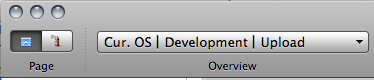
<p>Connect the Arduino via USB. Change the Active Target to &#8220;Upload&#8221;. The select Build&gt;Clean All Targets. This will compile the code and upload it to the Arduino. The template contains a simple blink sketch to confirm that the process worked.</p>
<h3>Serial Terminal</h3>
<p>I recall a neat trick to enable easy access to opening a serial terminal through Xcode, but can&#8217;t find it now. In the meantime you can use the Terminal.app to open a serial connection to the Arduino:</p>
<ol>
<li> Open /Applications/Utilities/Terminal.app</li>
<li>The the command prompt in the new terminal window type (without the quote marks),
<ul>
<li>&#8220;screen /dev/tty.usbserial&#8221;</li>
<li>Hit the Tab key. The rest of the serial port&#8217;s name should appear. If it doesn&#8217;t, verify that the Arduino is plugged in via serial and is powered on.</li>
<li>For example, the command for my Arduino looks like: &#8220;screen /dev/tty.usbserial-A4001Jdl&#8221;</li>
</ul>
</li>
<li>Press return to execute the screen command. The Arduino will reset and should open the serial port.</li>
<li>You can type to send characters, but there is no local echo (ie. you won&#8217;t see the typed characters)</li>
<li>To exit and close the serial port
<ul>
<li>Press Control-A then &#8216;k&#8217; to &#8220;kill&#8221; the window. This just stops the screen program and returns to the command prompt.</li>
</ul>
</li>
</ol>
<p>Of course, you could use ZTerm instead&#8230;<br />
Good luck!</p>
]]></content:encoded>
			<wfw:commentRss>http://robertcarlsen.net/2009/02/28/using-arduino-in-xcode-532/feed</wfw:commentRss>
		<slash:comments>27</slash:comments>
		</item>
	</channel>
</rss>